
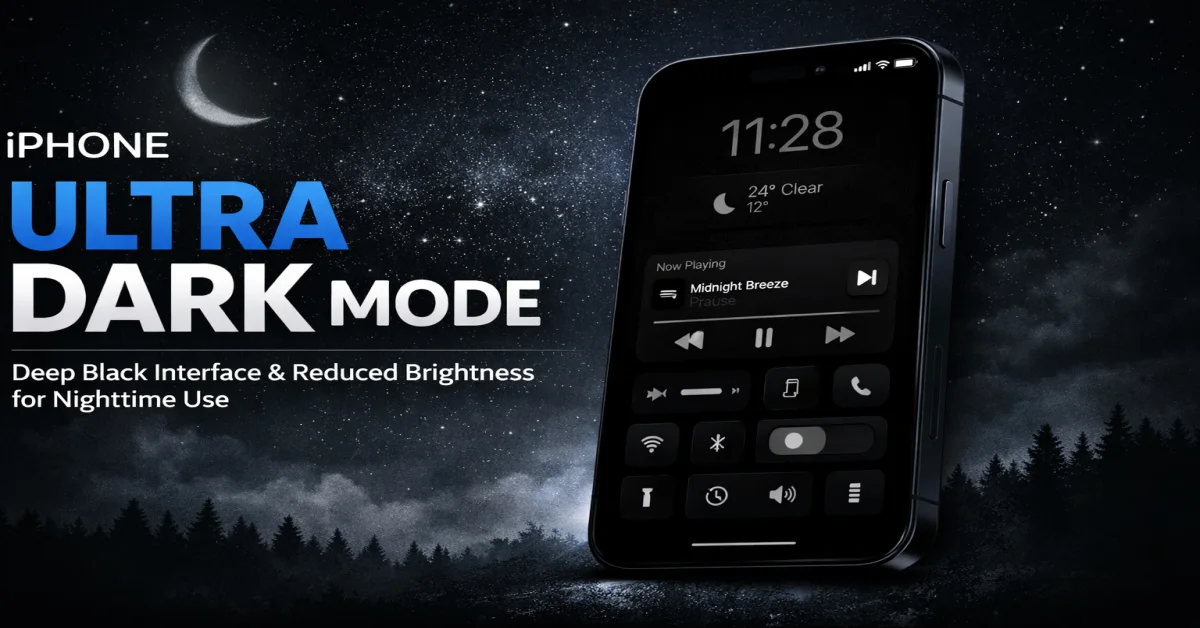
If you’re still using regular Dark Mode on your iPhone, you’re missing out on the most game-changing display trick of 2026. The Ultra Dark Mode setting has been hiding in plain sight within iOS, and once you activate it, there’s absolutely no going back to those bright, eye-straining displays. This isn’t just another accessibility feature—it’s a complete transformation of your nighttime iPhone experience that tech enthusiasts and casual users alike are raving about across social media.
What Exactly Is Ultra Dark Mode on iOS?
Ultra Dark Mode isn’t an official Apple term, but it’s what the iOS community has dubbed the combination of several hidden accessibility settings that create an incredibly deep, true-black display experience. While standard Dark Mode simply inverts colors and adds gray backgrounds, Ultra Dark Mode takes things several steps further by:
- Reducing white point intensity to eliminate all harsh brightness
- Increasing contrast ratios for OLED displays to achieve pure blacks
- Dimming beyond the normal minimum brightness level
- Creating a cohesive ultra-dark aesthetic across all apps and system interfaces
The result? A display so comfortable for nighttime use that you’ll wonder how you ever survived without it. Your eyes will thank you, your battery life will improve (especially on OLED iPhones), and you’ll finally understand what everyone on TikTok and Instagram has been obsessing over.
Why Ultra Dark Mode Is Taking Over in 2026
The trend exploded in late 2025 when tech influencers discovered that combining specific iOS accessibility features created a dramatically superior dark mode experience. Here’s why millions of iPhone users are making the switch:
1. Superior Eye Comfort
Medical professionals have long warned about blue light exposure and eye strain from smartphone displays. Ultra Dark Mode significantly reduces the amount of light emitted by your screen, making late-night scrolling far less damaging to your circadian rhythm and overall eye health.
2. Extended Battery Life
On OLED and Super Retina XDR displays (iPhone X and newer), pure black pixels are actually turned off completely. Ultra Dark Mode maximizes these true-black areas, potentially extending your battery life by 15-30% during typical usage.
3. Aesthetic Appeal
Let’s be honest—Ultra Dark Mode just looks incredible. The deep blacks create a premium, cinema-like experience that makes content pop and gives your iPhone a sophisticated edge that standard dark mode simply can’t match.
4. Better Content Focus
With drastically reduced background brightness, your attention naturally focuses on the content itself rather than being distracted by surrounding interface elements.
How to Enable Ultra Dark Mode on Your iPhone: Complete Step-by-Step Guide
💡 Pro Tip: This method works on iOS 14 and later, but the effect is most dramatic on iOS 17 and iOS 18 devices with OLED displays (iPhone X, XS, 11 Pro, 12 and newer models).
Step 1: Enable Standard Dark Mode First
Navigate to Settings > Display & Brightness and select Dark appearance. You can also set it to activate automatically at sunset or on a custom schedule.
Step 2: Access Accessibility Settings
Go to Settings > Accessibility > Display & Text Size. This is where the magic happens—these settings are the secret sauce to achieving Ultra Dark Mode.
Step 3: Reduce White Point
Toggle on Reduce White Point and slide the intensity to 75-85%. This dramatically decreases the intensity of bright colors without affecting the overall contrast. This single setting makes the biggest difference in achieving that ultra-dark aesthetic.
Step 4: Increase Contrast
Enable Increase Contrast. This makes dark areas darker and enhances the separation between interface elements, creating deeper blacks throughout the system.
Step 5: Enable Reduce Transparency (Optional)
Turn on Reduce Transparency to eliminate the frosted glass effects in iOS. This replaces translucent backgrounds with solid dark colors, making the overall experience even darker.
Step 6: Fine-Tune Your Brightness
After enabling these settings, you can lower your screen brightness even further than before. The combination allows for comfortable viewing at brightness levels that would normally be too dim.
Step 7: Create an Accessibility Shortcut
Go to Settings > Accessibility > Accessibility Shortcut and select Reduce White Point. Now you can triple-click the side button to instantly toggle Ultra Dark Mode on and off!
💡 Power User Tip: Some users create an automation in the Shortcuts app to enable these settings automatically at a specific time each evening and disable them in the morning.
Advanced Ultra Dark Mode Customization
Once you’ve mastered the basics, take your Ultra Dark Mode experience to the next level with these advanced tweaks:
Color Filters for Even Deeper Blacks
Navigate to Settings > Accessibility > Display & Text Size > Color Filters. Enable Color Filters and select Grayscale or Color Tint. While this removes color entirely, it creates an ultra-minimalist experience that some users prefer for late-night reading or focus sessions.
Smart Invert Colors
Found under Settings > Accessibility > Display & Text Size > Smart Invert, this feature inverts all colors except for images, media, and some apps that use dark color styles. It’s more extreme than standard dark mode and pairs well with reduced white point.
Night Shift Integration
Combine Ultra Dark Mode with Night Shift (Settings > Display & Brightness > Night Shift) to reduce blue light even further. Set Night Shift to maximum warmth for the ultimate eye-comfort combination.
Apps That Look Amazing in Ultra Dark Mode
While Ultra Dark Mode works system-wide, certain apps truly shine with these settings enabled:
- Twitter/X: The pure black OLED theme becomes even more immersive
- YouTube: Videos appear to float on an invisible canvas
- Reddit: Reading threads becomes infinitely more comfortable
- Instagram: Photos and stories pop with incredible contrast
- Apple Books: Reading at night becomes strain-free
- Spotify: The already-dark interface becomes absolutely stunning
- Safari: Web browsing transforms into a premium experience
Common Issues and How to Fix Them
Screen Looks Too Dark in Daylight
This is the most common issue. Solution: Use the triple-click accessibility shortcut to quickly disable Reduce White Point when you’re outdoors or in bright environments. Alternatively, lower the white point reduction to 50-60% for a more balanced experience.
Some Apps Look Weird
A few apps aren’t optimized for these extreme settings. Solution: You can exclude specific apps or simply toggle Ultra Dark Mode off temporarily when using them.
Text Becomes Hard to Read
If text appears too faint, disable Reduce Transparency or lower the white point reduction slightly. Also, consider enabling Bold Text in Settings > Display & Brightness.
⚠️ Important Note: Ultra Dark Mode settings are more extreme than standard dark mode. Start with lower intensity levels and gradually increase them to find your personal sweet spot. What works for one person might be too extreme for another.
The Science Behind Why Ultra Dark Mode Works
Understanding the science makes the benefits even more compelling. OLED displays (found in iPhone X and newer Pro models) function fundamentally differently from LCD screens. Each pixel generates its own light, meaning black pixels are completely turned off. This creates several advantages:
- Infinite contrast ratios: True blacks next to bright colors
- Reduced power consumption: Off pixels use zero energy
- Less eye strain: Significantly reduced overall light emission
- Deeper immersion: Content appears to float in darkness
Studies from vision science researchers indicate that reducing screen brightness and blue light exposure in the evening can improve sleep quality by up to 23% and reduce digital eye strain by nearly 40%.
Ultra Dark Mode Across Different iPhone Models
iPhone 15 Pro Max / 15 Pro
The Super Retina XDR display with ProMotion makes Ultra Dark Mode absolutely breathtaking. The 120Hz refresh rate combined with OLED technology creates the smoothest, darkest experience possible.
iPhone 15 / 15 Plus
Still featuring OLED technology, these models deliver excellent Ultra Dark Mode performance with true blacks and vibrant colors when needed.
iPhone 14 Series and Earlier OLED Models
Full support for Ultra Dark Mode with all the battery and eye comfort benefits. The effect is consistent across iPhone X and all subsequent OLED models.
iPhone SE and LCD Models
While these devices can use all the same settings, they won’t achieve true blacks since LCD technology requires a backlight. However, you’ll still benefit from reduced brightness and eye strain relief.
Frequently Asked Questions (FAQs)
Q1: Does Ultra Dark Mode actually save battery life?
Yes, significantly—but only on OLED iPhones (iPhone X and newer). Since OLED pixels turn off completely when displaying black, you can expect 15-30% better battery life depending on your usage patterns. LCD iPhones will see minimal battery improvement since the backlight stays on regardless of what’s displayed.
Q2: Is Ultra Dark Mode safe for my eyes?
Absolutely. In fact, it’s safer than standard brightness levels for nighttime use. By reducing overall light emission and blue light exposure, Ultra Dark Mode decreases eye strain and can help maintain healthier sleep patterns. However, make sure text remains clearly readable—if you’re squinting, increase the brightness slightly.
Q3: Can I use Ultra Dark Mode during the day?
While you can, it’s not recommended for bright outdoor environments. The reduced white point makes the screen difficult to see in direct sunlight. Use the triple-click accessibility shortcut to quickly toggle it on and off as needed, or adjust the white point reduction to a lower percentage (40-50%) for all-day use.
Q4: Will these settings affect my photos and videos?
Your actual photo and video files remain unchanged—these are display settings only. However, photos and videos will appear darker on your screen when viewing them. If you need accurate color representation for photo editing, temporarily disable Ultra Dark Mode or use the Photos app’s edit mode, which shows content at proper brightness.
Q5: Does Ultra Dark Mode work on iPad and other Apple devices?
Yes! These same accessibility settings exist on iPadOS and macOS. iPads with OLED displays (like the iPad Pro with Liquid Retina XDR) will see the best results, while LCD models will still benefit from reduced brightness and eye strain. On Mac, look for similar settings in System Settings > Accessibility > Display.
Q6: Why isn’t this just a standard option in iOS settings?
Apple intentionally places these powerful customization options in Accessibility settings because they’re quite extreme and not suitable for every user or situation. They require some user education and adjustment. By combining multiple accessibility features, power users discovered the Ultra Dark Mode effect, which is now spreading virally through the iOS community.
Q7: Can I automate Ultra Dark Mode to turn on at night?
Yes, using the Shortcuts app. Create an automation triggered by time of day or sunset that enables Reduce White Point and other settings. Then create another automation for morning to disable them. You can also use Focus modes tied to specific times to help automate the process.
Q8: Will this affect my iPhone’s warranty or performance?
Not at all. These are built-in iOS features provided by Apple. Using accessibility settings as intended (or in creative combinations) has zero impact on warranty, performance, or device longevity. You’re simply customizing the display output, not modifying system files or hardware.
Q9: What’s the difference between Ultra Dark Mode and True Tone?
True Tone adjusts white balance based on ambient lighting to make colors appear more natural. Ultra Dark Mode reduces overall brightness and increases darkness. They serve different purposes and actually work great together—True Tone maintains color accuracy while Ultra Dark Mode reduces eye strain.
Q10: My friends can’t see my screen clearly when I show them something. What should I do?
This is a common side effect of Ultra Dark Mode. Simply use the triple-click shortcut to temporarily disable Reduce White Point when sharing your screen with others, then re-enable it afterward. Most Ultra Dark Mode users develop this as a quick habit.
Conclusion: Transform Your iPhone Experience Tonight
Ultra Dark Mode isn’t just another tech trend—it’s a fundamental improvement to how you interact with your iPhone during evening and nighttime hours. By leveraging iOS’s powerful accessibility features in creative ways, you can achieve a display experience that’s easier on your eyes, better for your battery, and aesthetically superior to standard dark mode.
The setup takes less than three minutes, costs nothing, and the benefits are immediately noticeable. Whether you’re scrolling through social media before bed, reading articles late at night, or simply want your iPhone to feel more premium, Ultra Dark Mode delivers results that regular settings simply can’t match.
Thousands of iPhone users have already made the switch and are experiencing the difference. The only question is: why are you still reading this instead of enabling Ultra Dark Mode on your device right now?
Take action today: Follow the step-by-step guide above, set up your accessibility shortcut, and discover why Ultra Dark Mode is the most talked-about iOS customization of 2026. Your eyes (and battery) will thank you.
Have you tried Ultra Dark Mode on your iPhone? Share your experience in the comments below! Don’t forget to share this guide with friends who are still using regular dark mode.
About Digiparvat: Digiparvat is your trusted source for the latest tech tips, iOS tricks, and digital lifestyle hacks. We decode complex technology into actionable guides that enhance your daily digital experience. Subscribe to our newsletter for more game-changing tech insights delivered straight to your inbox.
About the Author